Tip of the day
This section shows some common use cases.
Start a video conference
Just enter the room name in the search field and select the button Open room "<room name>".
Conferences
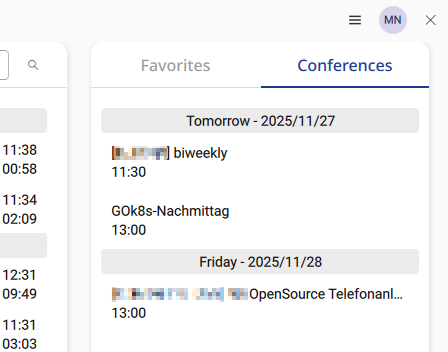
If you have a CalDAV connection configured, upcoming appointments will be shown in the Conferences tab.
Due to a bug the Conferences tab is currently only shown if favorites are defined. This should be fixed after v2.0.7.
Also on the Conferences tab only appointments with a Jitsi Meet URL as location are shown.
How the Headset driver works
GOnnect supports many headsets in the way that it reacts on key presses or propagates the call state to the headset. Supported functions are:
-
Setting the on-hook state of the headset. Depending on the headset, this activates special functions, which only make sense during a call/video conference.
-
Hanging up a call/video conference by pressing the according button on the headset.
-
Syncing the mute state between GOnnect, headset and system.
-
Show call/conference information on the headset display
On the settings page, you can see, if the headset driver is active.
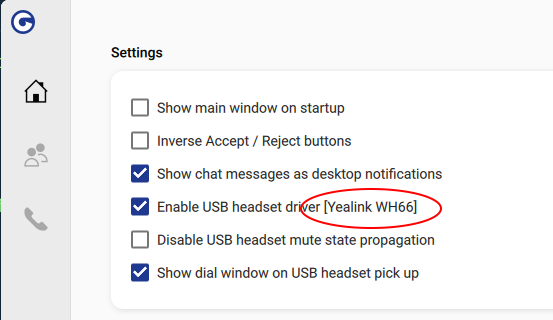
As GOnnect can not support any headset in the world, some functions may not work with your headset. To mitigate the occurrence of problems you can activate the checkbox "Disable USB headset mute state propagation" in the case, you have issues with mute. If this does not help, disable the headset support completely by unchecking the box "Enable USB headset driver".
There are also Workarounds which relates to headsets you can check.
GOnnect detects the headset on startup. So if you connect the headset you have to restart GOnnnect to use the headset driver.